TH0R's CS2 Crosshair Code and History
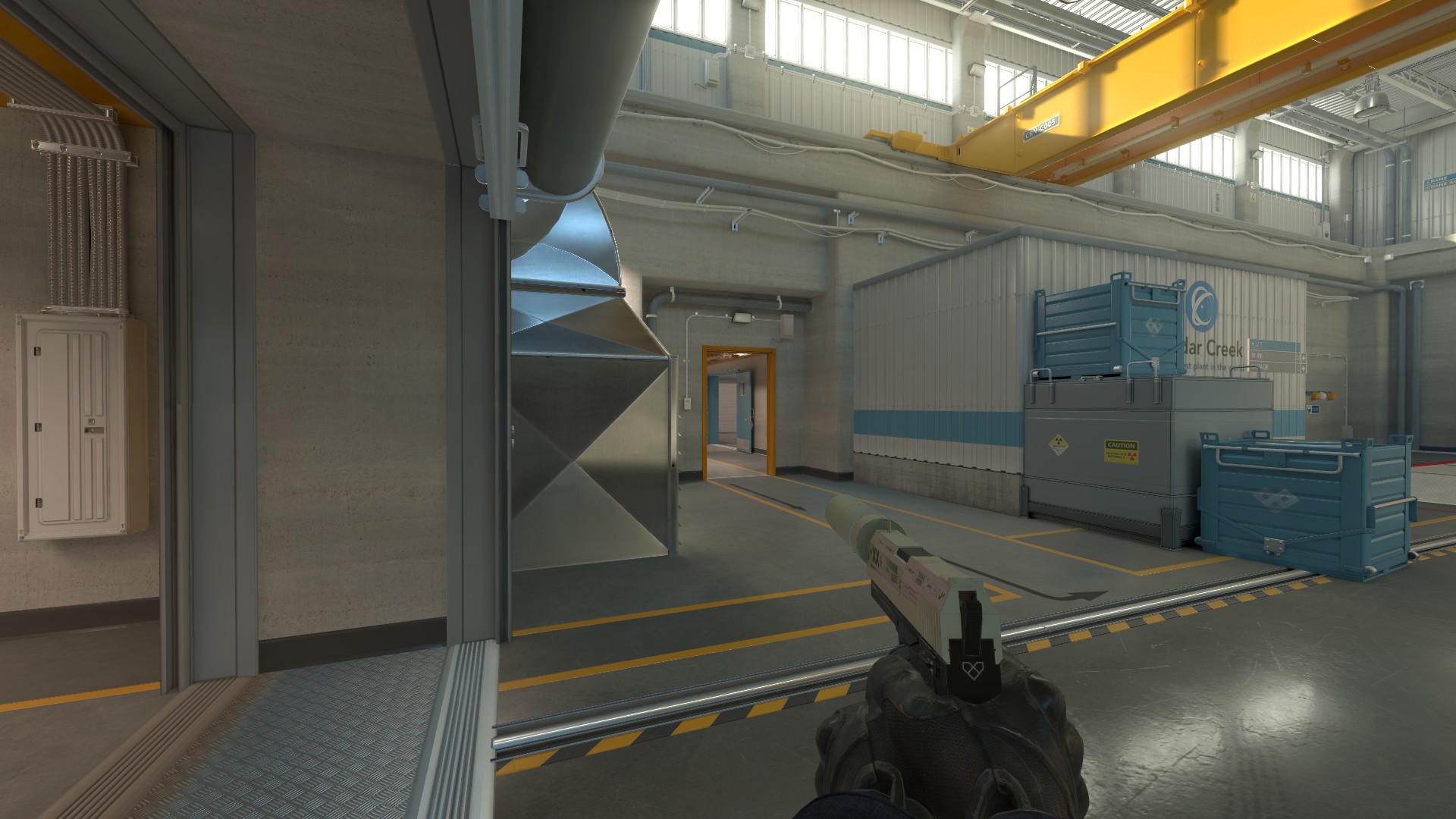
On this page you can find TH0R's current CS2 crosshair code and commands to apply it to your own game.
Click on a game in the "Crosshair History" panel to view the code and command for the crosshair used in that event. If you want to edit a crosshair, click "Edit in crosshair generator" to visit our crosshair generator with this crosshair pre-applied. To view TH0R's full history, click "View full history".
If you need help applying this crosshair code, see how to apply.


Current Crosshair
From PARIVISION vs Fisher College on 10 May, 2026
Crosshair History
2 historical crosshairs- 10 May, 2026PARIVISION vs Fisher College

- 06 February, 2026NRG vs Fisher College

How to Apply TH0R's Crosshair
To apply TH0R's current crosshair, copy the below code:
CSGO-PFs8c-J66BG-opEMx-EdKb5-h7z6A If you want to apply a crosshair code from TH0R's history, copy that code instead (the above code is the crosshair they've most recently used).
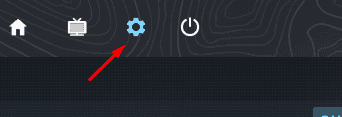
Then, in CS2 open the settings menu by clicking the cog on the left of the home screen:
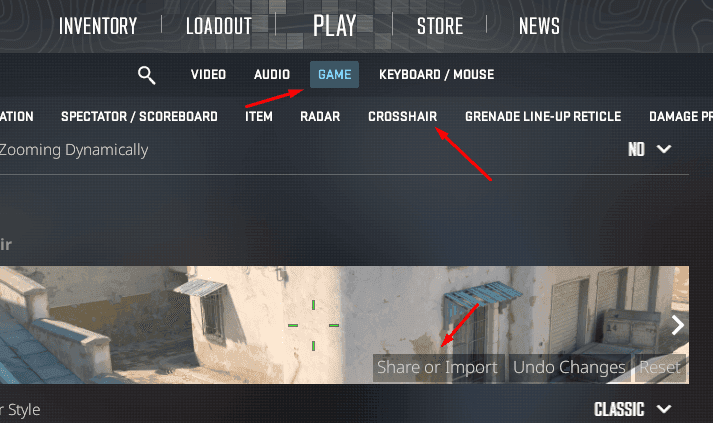
Then click to Game settings, click Crosshair and click Share or Import (you might need to scroll up a bit after clicking on Crosshair to see this):
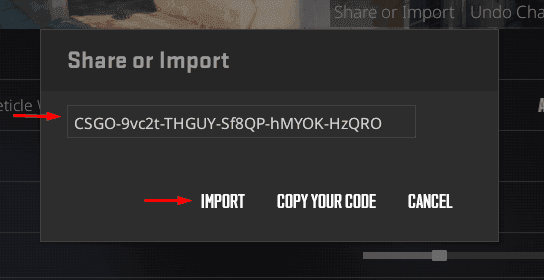
Now, all you need to do is paste a crosshair code into the text box and click IMPORT to apply your new crosshair:
TH0R's Complete Crosshair History